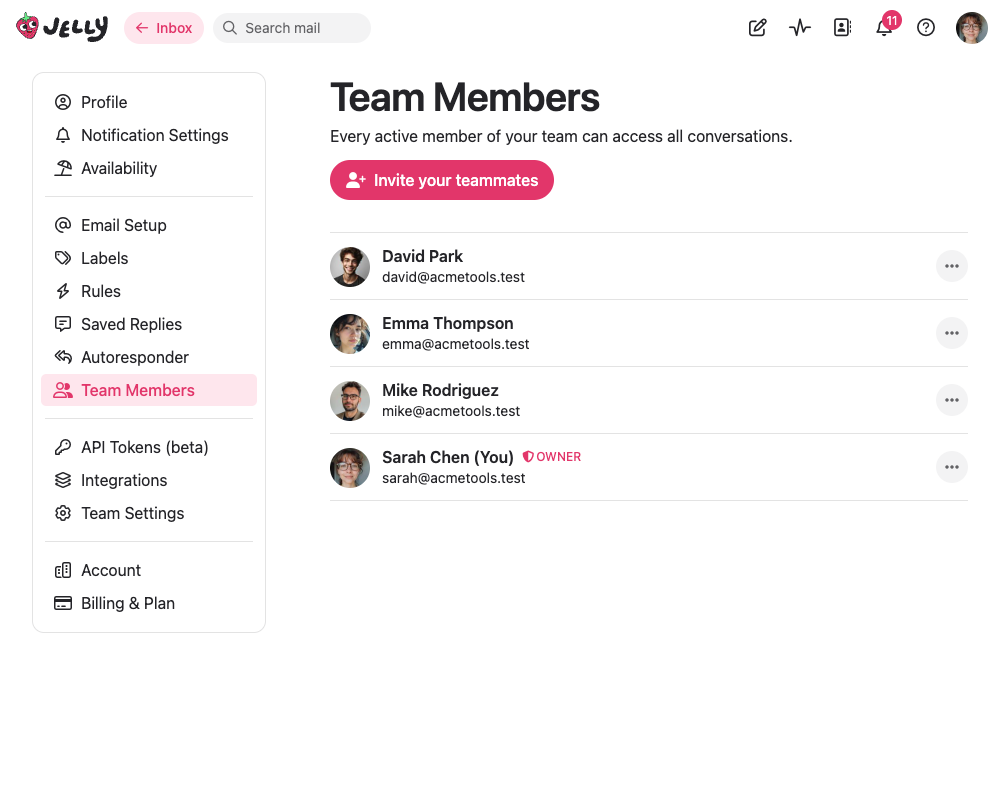
Only admins and owners can manage team members.
Inviting Members
To invite someone to your team, click the invite button on the Team Members page and enter their email address. You can invite up to four people at once.
Jelly will send each person an email invitation with a link to join your team. Invitations expire after one week — if someone misses theirs, you can resend it from the pending invitations section.
You can also cancel a pending invitation if you sent one by mistake.
Roles

Every team member has one of three roles:
Member
The default role for new team members. Members can:
- View and respond to all conversations in the inbox
- Claim conversations, add comments, and collaborate with the team
- Manage their own notification preferences and availability
Members cannot change team settings or manage other members.
Admin
Admins have all member permissions, plus:
- Update team settings (name, default address, from format, etc.)
- Invite new members and manage pending invitations
- Promote members to admin, or demote admins to member
- Deactivate and restore members
- Create, edit, and delete rules, saved replies, and other shared resources
Owner
Owners have full control over the team. In addition to everything admins can do, owners can:
- Promote members to owner, or demote owners to admin
- Delete the team
- Access account-level settings like billing and subscriptions
Every team must have at least one owner.
Changing Roles
You can change someone’s role from the Team Members page. The changes you can make depend on your own role:
- Admins can promote members to admin, and demote admins to member
- Owners can promote or demote anyone between all three roles
Deactivating Members
If someone leaves your team or no longer needs access, you can deactivate them from the Team Members page. Deactivated members immediately lose access to the team and won’t be able to sign in.
Deactivated members appear in a “Former Members” section. You can restore them at any time — they’ll receive an email letting them know they’ve been re-added to the team.
You can’t deactivate yourself. If you need to leave a team, ask another admin or owner to deactivate you.