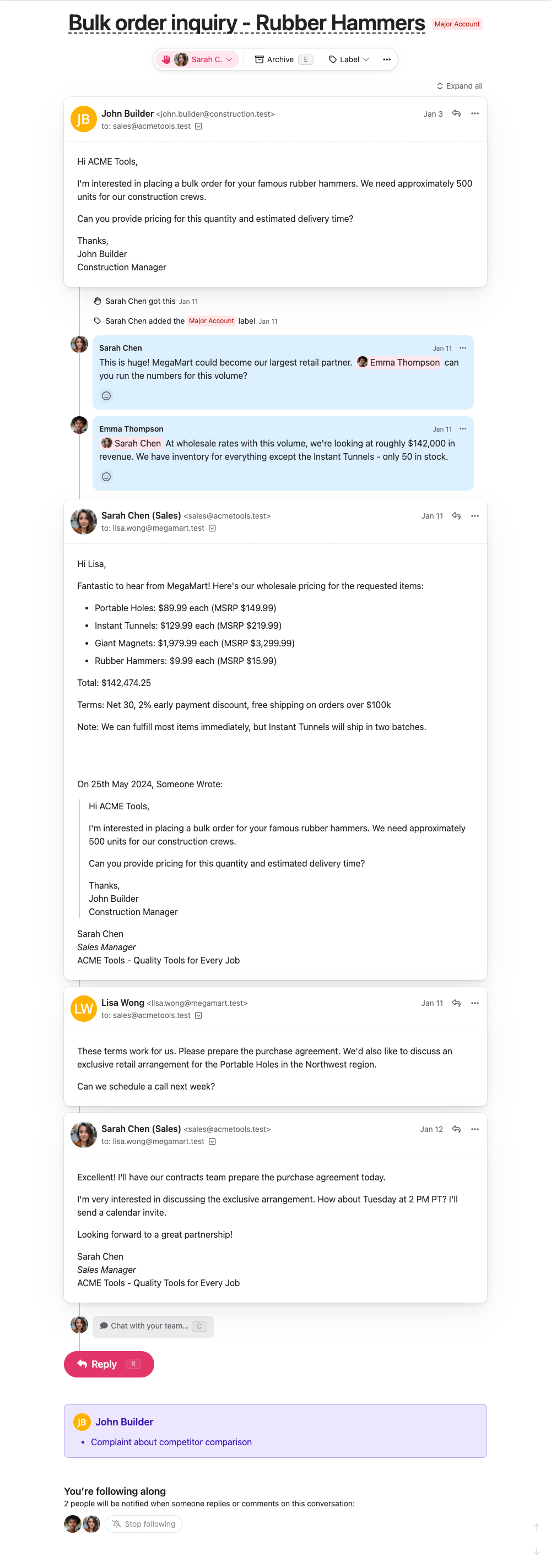
What Are Comments?
Comments are internal notes that only your team can see. When you add a comment to a conversation:
- Only team members can view it
- The customer never sees it in their email thread
- It appears in the conversation’s activity feed
- Team members get notified about new comments
Comments are completely separate from email replies - they’re for internal discussion only.
When to Use Comments
Comments are useful in many situations:
Coordinating Responses
Before sending a reply, you might want to discuss the best approach:
“Should we offer a discount here or stick to our policy?”
Asking for Help
When you need input from someone with more expertise:
“This customer is asking about technical details I’m not sure about. @sarah can you help with this?”
Sharing Context
Letting teammates know important background information:
“This customer has been with us for 3 years and has never had an issue before. Let’s make sure we take extra care with their request.”
Handoffs
When you need to pass a conversation to someone else:
“I’ve gathered all the information needed. @mike can you take over from here? The customer needs a technical solution.”
Internal Notes
Recording information that might be useful later:
“Customer mentioned they’re planning to upgrade their plan next month. Follow up then.”
How to Add Comments
You can add comments in several ways:
From the Conversation View
- Open any conversation
- Click “Chat with your team…” (or press
c) - Type your message
- Click “Add internal comment”
Mentions
Use @ to mention specific team members:
- Type
@followed by their name - They’ll get a notification about your comment
- They’ll also be subscribed to this conversation, notifying them of other comments and replies. Thinking about it as “looping them in”.
Comment Best Practices
Be Clear and Concise
Since comments are for internal coordination, get straight to the point:
“Customer wants refund - policy says no, but they’re a long-term client. Approve?”
“I was just looking at this message from this customer and they seem to be asking about getting their money back but I know our policy normally doesn’t allow for this kind of situation but I also noticed that they’ve been a customer for a while so I was wondering what you think we should do maybe we could make an exception?”
Use Mentions Appropriately
- Mention specific people when you need their input
- Don’t mention everyone unless it’s truly urgent
- Consider if a comment needs to be directed at someone specific
Provide Context
When asking for help, give enough information:
“Customer reporting login issues on Chrome. They’ve already tried clearing cache. @dev-team any known issues?”
“Customer can’t log in. Help?”
Keep Customer-Facing Info Separate
Remember that comments are never visible to customers. If you need to communicate something to the customer, use an email reply instead.
Comments vs Email Replies
It’s important to understand when to use comments vs when to send actual email replies:
| Use Comments When | Use Email Replies When |
|---|---|
| Coordinating with teammates | Communicating with the customer |
| Asking internal questions | Providing information to the customer |
| Sharing context with the team | Answering the customer’s questions |
| Planning your response | Actually sending the response |
Comment Notifications
Team members receive notifications for comments when:
- Someone mentions them with @
- They’re assigned to the conversation
- They’ve previously commented on the conversation
This ensures relevant people stay in the loop without being overwhelmed by notifications for conversations they’re not involved in.
Comment History
All comments are saved in the conversation’s activity feed, so you can:
- Look back at previous discussions
- Understand the decision-making process
- See how a conversation evolved over time
This is especially useful for complex conversations that involve multiple team members or extend over several days.
Comments and Assignment
Comments often work hand-in-hand with assignment:
- Someone adds a comment asking for help
- Another team member responds and assigns themselves
- The conversation moves to the appropriate person’s “Mine” section
This workflow ensures clear communication and smooth handoffs between team members.