What’s in a Contact?
Each contact has:
- Name and email address — pulled from incoming emails
- Avatar — loaded from Gravatar based on their email address
- Note — a private rich text note visible only to your team
- Labels — colored tags you can add for organization (e.g., “VIP”, “Partner”, “Press”)
- Links — URLs you can attach to a contact (e.g., their website, CRM profile, social media)
- Conversation history — every conversation your team has had with this person
Viewing Contacts
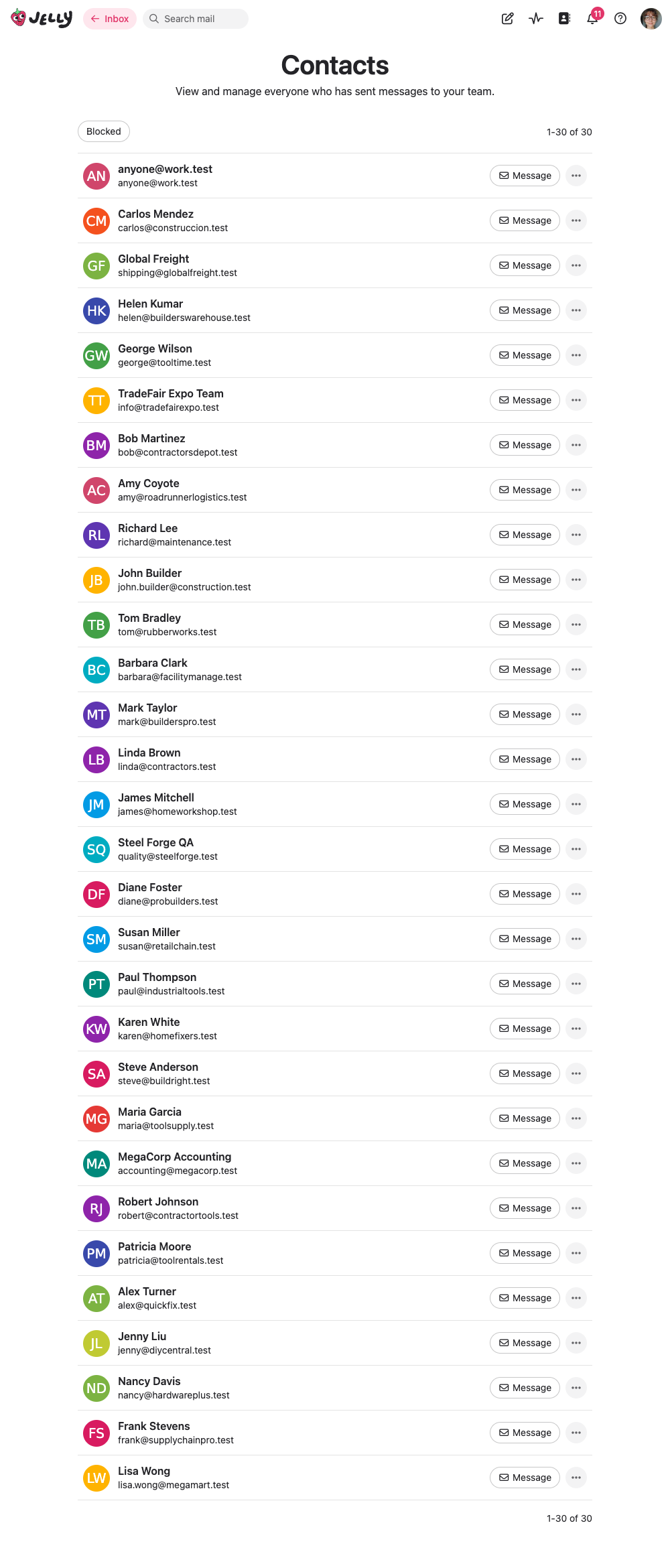
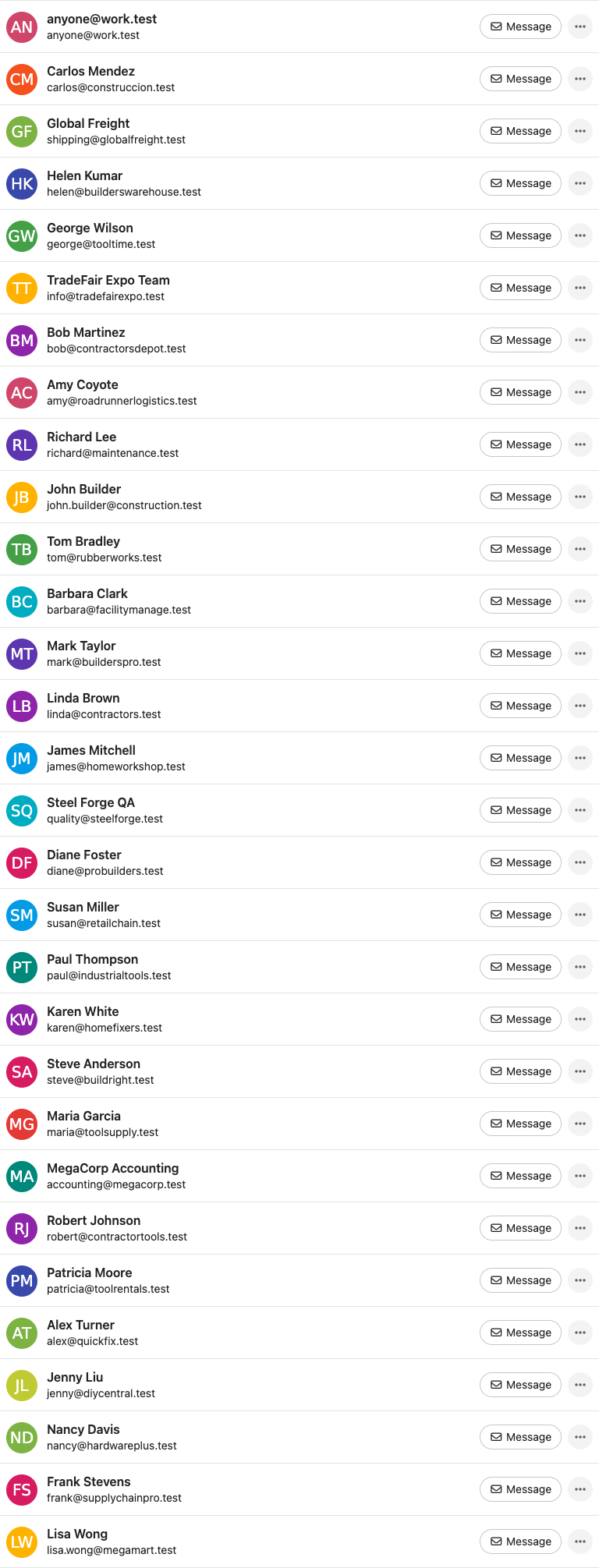
Click Contacts in the navigation to see a list of everyone who has emailed your team. Each contact shows their name, email address, avatar, and any labels.
From the contact list, you can:
- Click a contact to see their full profile and conversation history
- Message — start a new conversation with them
- See all conversations — view their complete conversation history
- Copy email address — copy their address to clipboard
- Block / Unblock — block a contact so future messages are marked as spam
- Delete — permanently delete a contact (only possible if they have no conversations)
You can also filter the list to show only blocked contacts using the link at the top.
Contact Profile
Clicking on a contact shows their profile page with:
- Their avatar, name, and email address
- Buttons to Message and an actions menu with Block/Unblock and Never flag as spam
- Their labels, links, and note
- A paginated list of all their conversations, with the same filters available as in the Inbox
Labels
Contact labels are colored tags for organizing your contacts. To add a label, click Add label on a contact’s profile and choose a name and color. You can remove a label by clicking the × next to it.
Notes
Each contact can have a private rich text note that’s visible only to your team. Use it to record context about a contact — things like their role, preferences, or anything your team should know when communicating with them.
To add or edit a note, click Add note or Edit note on the contact’s profile page. Notes support rich formatting like bold, italic, and lists.
Links
Contact links let you attach relevant URLs to a contact — like their profile in your CRM, their company website, or a Slack channel. Click Add link on their profile to add one.
Labels, notes and links can also be managed via the API.
Blocking
Blocking a contact means future messages from them will be marked as spam automatically. You can block or unblock from the contact’s profile or from the contact list.
If you want the opposite — ensuring a contact’s messages are never marked as spam — use the Never flag as spam option in the contact’s action menu.
Tips
- Use labels to segment contacts — Labels like “VIP”, “Partner”, or “Vendor” make it easy to identify important contacts at a glance
- Add notes for team context — Record useful details about a contact so everyone on your team has the context they need
- Add links for quick reference — If you keep customer info in a CRM or project management tool, add a link on their contact so your team can access it with one click
- Review blocked contacts periodically — Make sure you haven’t accidentally blocked someone important