Understanding Your Inbox
Jelly’s inbox is designed to help teams work together efficiently. It automatically organizes conversations into smart sections, making it clear who’s working on what and what needs attention.
Jelly shows the same set of conversations to everyone in your team, but organizes them differently based on who’s assigned to what.
Conversations in your “Mine” section are unique to you. This way, everyone knows what they need to focus on without confusion.
The Four Inbox Sections
Brand New
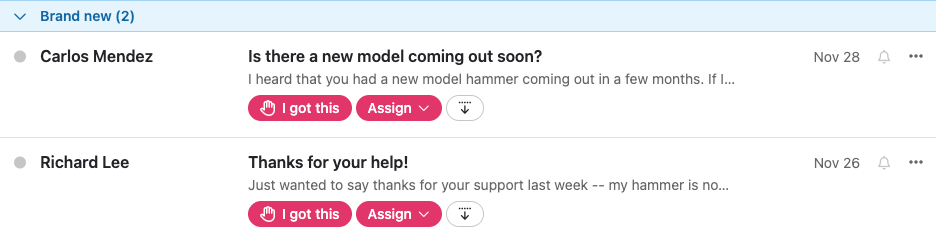
Conversations that haven’t been claimed by anyone yet. These are fresh messages that need someone’s attention. When a conversation appears here, any team member can claim it by clicking “I got this”.
… or, if they're confident someone else should be handling this, then can click “Assign” (Jelly will notify the assignee(s) automatically).
… or click the down arrow — "Move down for me" — if you know you won’t be handling it and want to triage it out of your Brand New. Learn more.
Mine
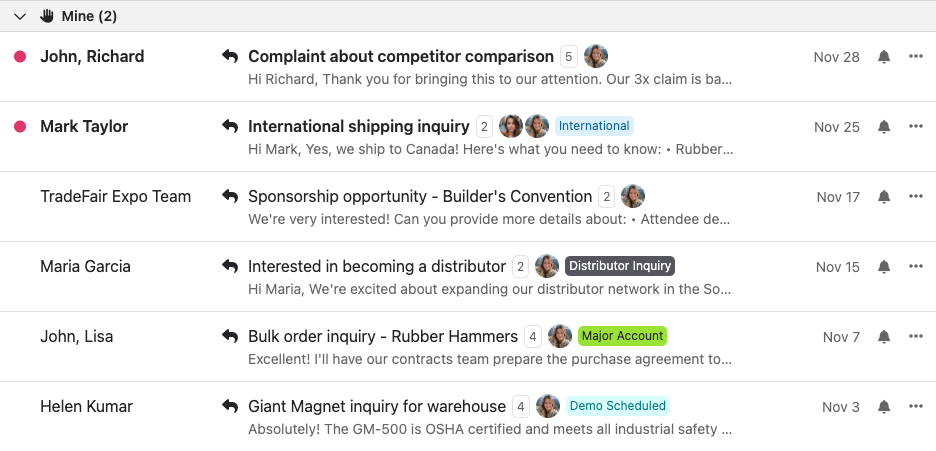
Conversations assigned to you. These are the conversations that you’re handling, either by yourself or with colleagues; either way, you’re making sure their being handled. Conversations appear here when:
- You click “I got this” on a new conversation
- Another team member assigns a conversation to you
- A mail rule automatically assigns it to you
Unclaimed

Conversations that aren’t new, but that you have explicitly opted not to handle by clicking “Move down for me”.
These conversations are still open and need attention, but you’ve indicated that you’re not the right person to handle them. Other team members can still claim or be assigned these conversations.
For the other people in your team, these conversations will appear in the “Brand New“ section (unless they’ve already clicked ”Moved down for me” too).
As soon as anyone claims or is assigned to one of these conversations, it will move to their “Mine“ section, and into your ”Assigned to someone else” section (see below). But if nobody does, it’ll hang around here for a while.
If you see a conversation lingering in this section, there’s a good chance your team needs to have a conversation about who should be handling it. Jelly is built to foster team collaboration, but some of that requires human communication too!
Assigned to someone else
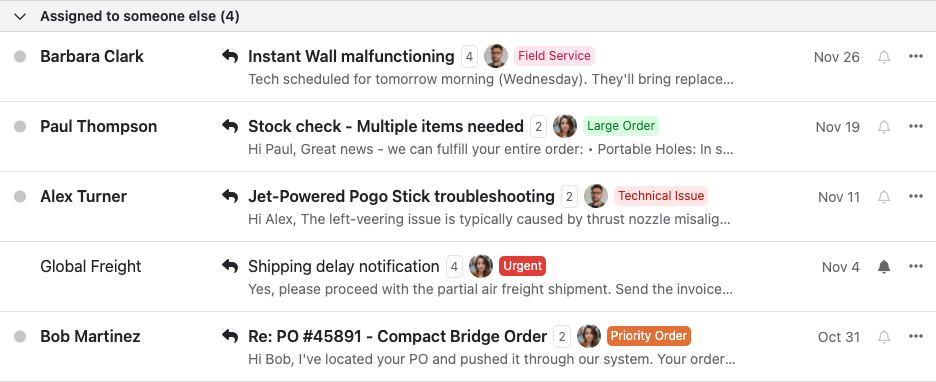
Conversations being handled by other team members. You can still view these for context and collaboration, but they’re someone else’s responsibility. This transparency helps teams stay coordinated.
Assignment: “I Got This”
The “I got this” button is Jelly’s quick way to claim a conversation. When you click it:
- The conversation moves to your “Yours” section
- It moves to “Assigned to someone else” for other team members
- Your avatar appears on the conversation, showing everyone you’re handling it
Need to hand off a conversation? You can:
- Click “I don’t got this“ to release it back to ”Unclaimed”
- Assign it directly to another team member
- Add additional assignees for collaboration
More than one person can be assigned to a conversation for teamwork. Everyone assigned will see it in their “Mine” section.
Move down for me
If you see a conversation that you know you won’t be handling, you can click the “Move down for me“ button. This moves the conversation to your ”Unclaimed” section, indicating that you’re not the right person to deal with it.
This action is personal to you; other team members will still see the conversation in their “Brand New” section until someone claims or is assigned to it.
This feature helps you focus on the conversations that matter to you, while still keeping the team informed about what needs attention.
If there's a conversation hanging around in your team's "Unclaimed" section, it might be a good idea to discuss with your team who should take responsibility for it.
Archiving
Once a conversation is resolved, you can archive it to keep your inbox tidy. Archived conversations are removed from the inbox for everyone, but can easily be found later, either in the “All Mail” section or by searching.
Archiving helps keep the inbox focussed on what needs attention.
If there's a new message in an archived conversation, it will automatically return to the appropriate inbox section, with all of the assignments intact.
Other actions
As well as archiving, you can also delete conversations or mark them as spam. These actions also apply to the entire team, removing the conversation from everyone’s inbox.
Finally, you can also snooze conversations if you want to temporarily hide them until later. Learn more about snoozing here.
Read/Unread Status
Unlike archiving, read & unread status is personal to you. You can keep track of what you’ve reviewed and what still needs your attention.
This means you can mark conversations as read or unread without affecting what your teammates see.
The unread count in each inbox section reflects only your unread conversations too.